| title | Clients — Connected AI Apps |
|---|---|
| description | Connect Cursor, Claude Desktop, VS Code, Windsurf, and other AI clients to McpMux. Approve them with one click, and let workspace-driven routing decide each app's tools by the folder it has open. |
Clients are the AI applications that connect to McpMux's gateway to access MCP tools, resources, and prompts. McpMux registers each app with a one-click approval, then routes its tools by the folder it has open — not by the app itself.
McpMux works with any MCP-compatible client, including:
| Client | Type | Connection |
|---|---|---|
| Cursor | IDE | Streamable HTTP |
| Claude Desktop | Desktop App | Streamable HTTP |
| Claude Code | CLI | Streamable HTTP |
| VS Code (Copilot) | IDE | Streamable HTTP |
| ChatGPT Desktop | Desktop App | Streamable HTTP |
| Windsurf | IDE | Streamable HTTP |
| JetBrains IDEs | IDE | Streamable HTTP |
| Zed | Editor | Streamable HTTP |
| Gemini CLI | CLI | Streamable HTTP |
All clients connect to the same endpoint: http://localhost:45818/mcp
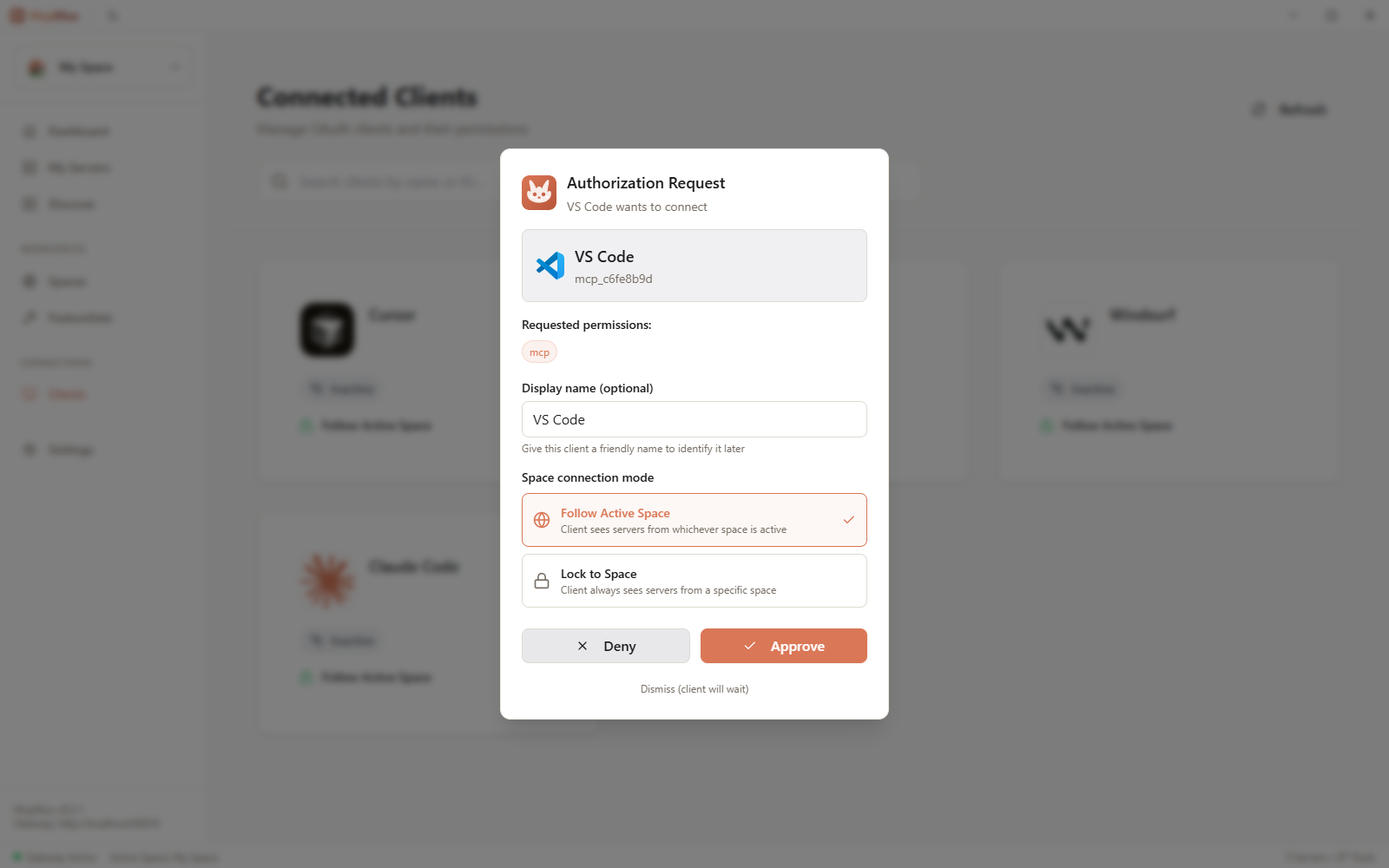
When a new client connects to the gateway, McpMux prompts you to approve it with one click. Approving registers the app and completes an OAuth 2.1 + PKCE handshake; its access key is stored in your OS keychain. (VS Code and Cursor can be connected in one click from the Home dashboard; other clients paste the gateway URL — see Getting Started.)
The tools an app sees are decided by the folder it reports (its MCP workspace root), resolved through a Workspace mapping — not configured per app. This means:
- Open your backend repo in any IDE and it sees your database and deploy tools; open a docs folder and it sees only search and filesystem.
- Two different apps (say Cursor and VS Code) opening the same folder get the same tools — routing follows the folder, not the app's identity.
- A session with no reported folder falls through to the active Space's FeatureSet.
To control an app's tools, map its folder in the Workspaces tab (or let the AI do it with Tool Optimization) rather than configuring the app itself.
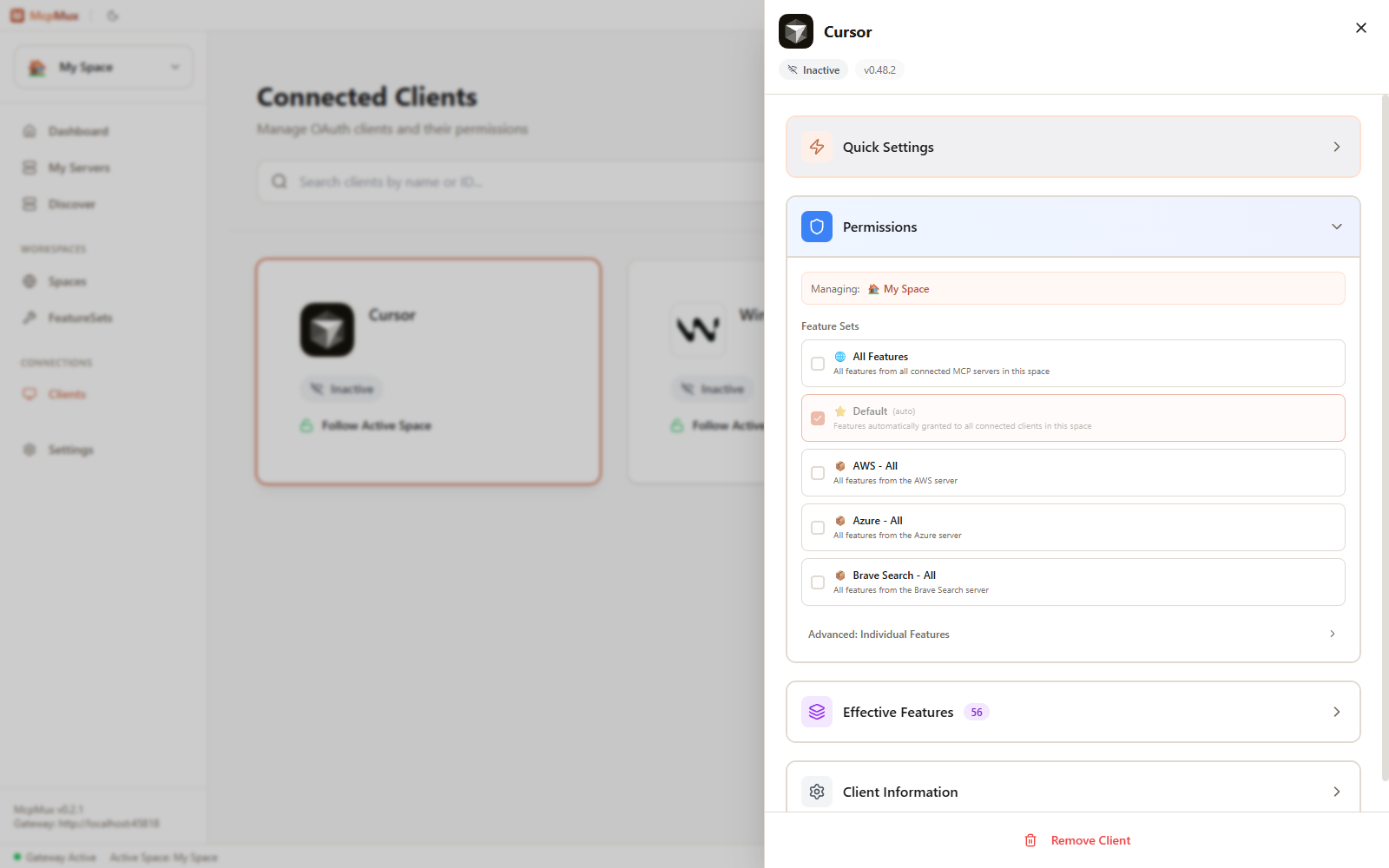
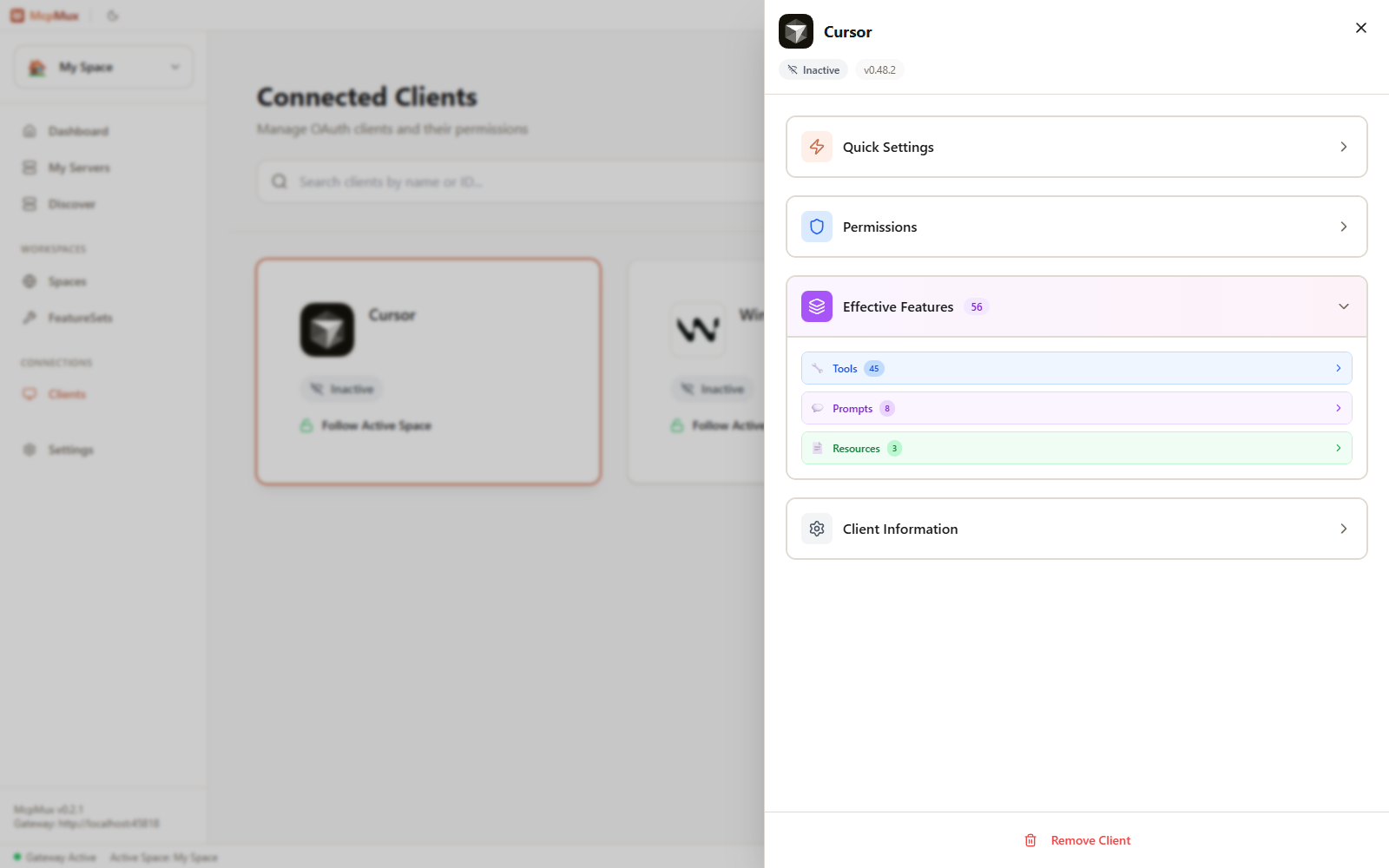
Open any app to see how it's currently routed and exactly which tools, prompts, and resources resolve for it.
Each client authenticates with McpMux using an access key. Access keys are:
- Issued automatically through the OAuth approval when a client registers
- Stored encrypted in the OS keychain
- Unique per client
- Revocable at any time
The Apps page shows every app connected to your gateway in real time:
- Each app's name, type, and live status
- How it's routed (which folder → which Space + FeatureSet)
- Last-seen timestamp
From there you can rename an app, inspect its routing, or revoke it — revoking removes its access key so it can no longer make requests through the gateway.
- Workspaces — map each folder to the toolset it should get
- FeatureSets — build the tool bundles a folder resolves to
- Tool Optimization — let an app curate its own toolset from chat
- Gateway — how client requests are authenticated and routed